Dante Audio Setup: Change Dante Redundancy to Switched Mode:
The CONNECTSERIES amplifiers come default set to Redundant mode under the Dante Redundancy Settings. This Dante Audio Setup Walk-through Guide will show you how to change the settings to Switched mode:
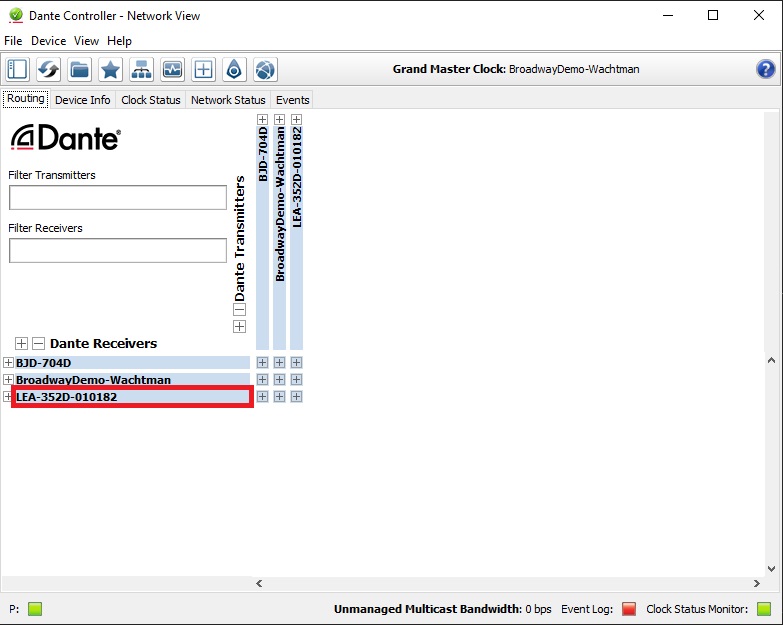
Double click on the device you want to change the settings for
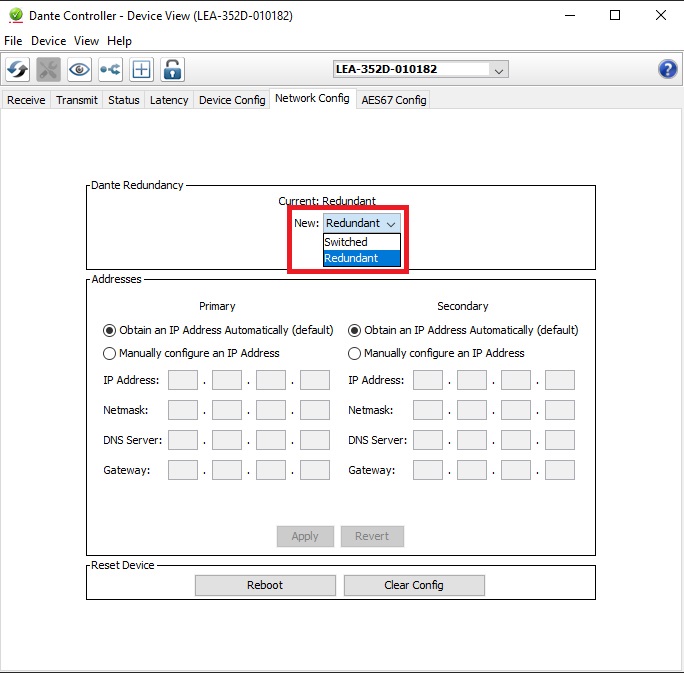
3. Click on the Network Config tab here:
4. Click on the New: drop down menu and select “Switched”.
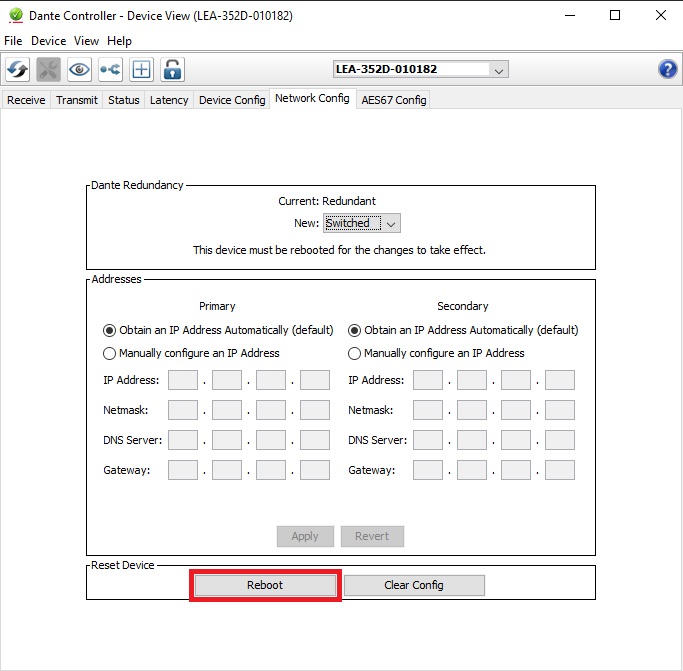
5. A message will pop up saying “The device must be rebooted for the changes to take effect.”
6. Click on the Reboot button at the bottom of the screen and close this window.
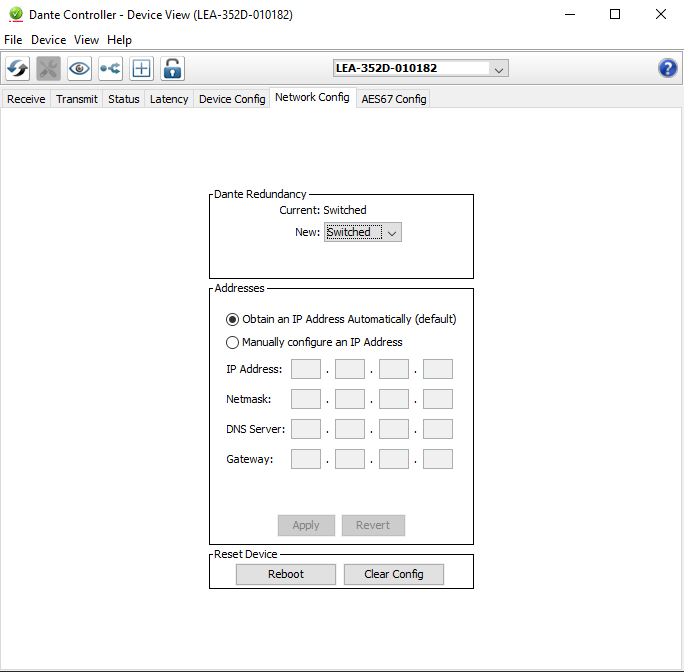
7. Double-click on the device once it is rebooted and go back to the Network Config tab and you will now see the device in Switched mode.
If you have any questions about changing from Dante Redundancy to Switched Mode, please leave a comment below or reach out to us on our social channels.
This website uses cookies to improve your experience. We'll assume you're ok with this, but you can opt-out if you wish.AcceptRejectRead More
Privacy & Cookies Policy
Privacy Overview
This website uses cookies to improve your experience while you navigate through the website. Out of these, the cookies that are categorized as necessary are stored on your browser as they are essential for the working of basic functionalities of the website. We also use third-party cookies that help us analyze and understand how you use this website. These cookies will be stored in your browser only with your consent. You also have the option to opt-out of these cookies. But opting out of some of these cookies may affect your browsing experience.
Necessary cookies are absolutely essential for the website to function properly. This category only includes cookies that ensures basic functionalities and security features of the website. These cookies do not store any personal information.
Any cookies that may not be particularly necessary for the website to function and is used specifically to collect user personal data via analytics, ads, other embedded contents are termed as non-necessary cookies. It is mandatory to procure user consent prior to running these cookies on your website.