Set A Static IP Address For Your Amplifiers With No DHCP Server:
**IMPORTANT NOTE**
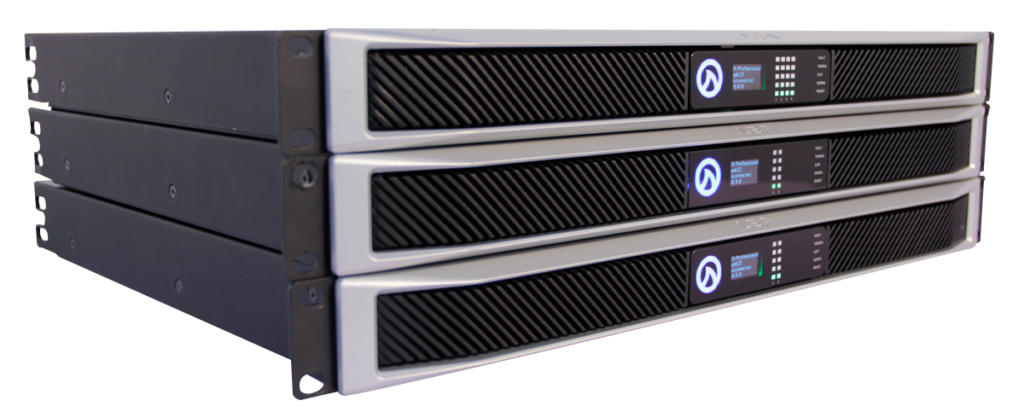
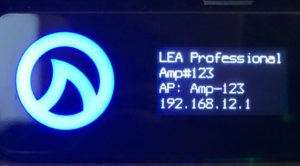
Follow the steps in this video whenever you encounter a CONNECTSERIES amp that says “Wired 0.0.0.0” on the front panel display. Set A static IP address for your amplifiers to resolve this.
This process uses a simple, unmanaged network switch without any DHCP server to connect via a static IP, but any network switch will work.
What You'll Need
Set A Static IP Address For Your Amplifiers With No DHCP Server:
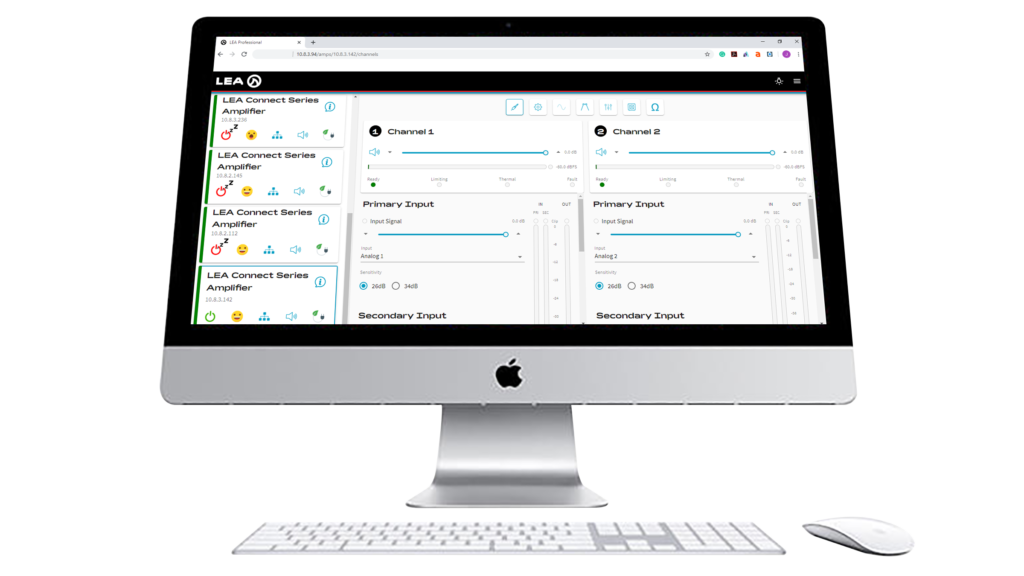
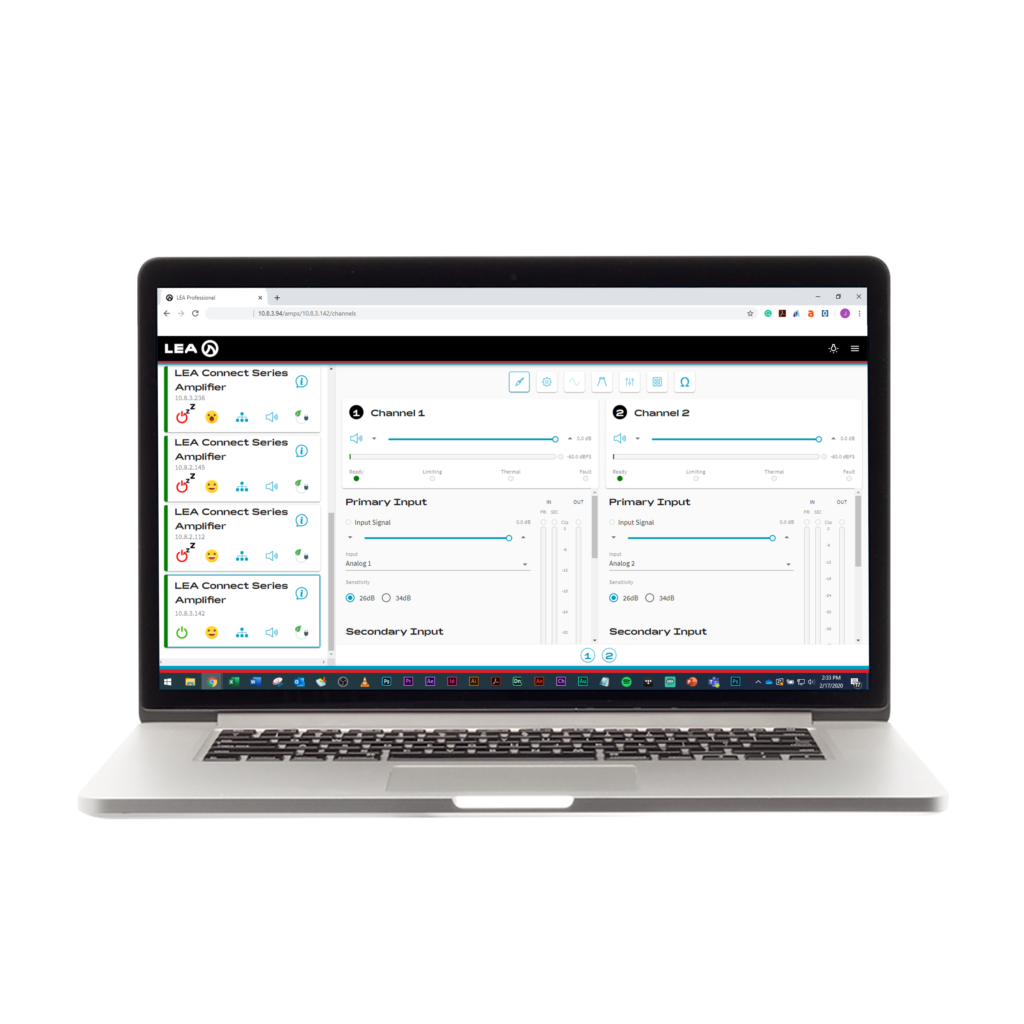
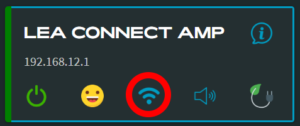
Click the Network Settings button on the amp screen of the Web UI.
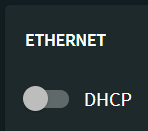
Under the “Ethernet” section, disable the DHCP setting
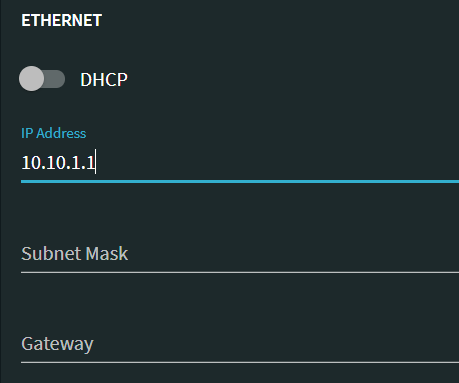
Type in your own IP Address
Click “Save” in the top right corner. This DHCP setting is now saved to the amplifier.
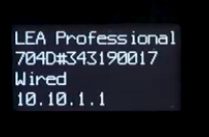
Press “Wi-Fi” button on back of the amplifier. The LED will turn off and the amp will switch to wired ethernet mode. The front display on the amplifier will now also show your new IP address.
Now the amplifier is set with a static IP.
Set Up A Static IP On Your Computer
Set A Static IP Address For Your Amplifiers With No DHCP Server:
(in the same subnet range as your amplifier)
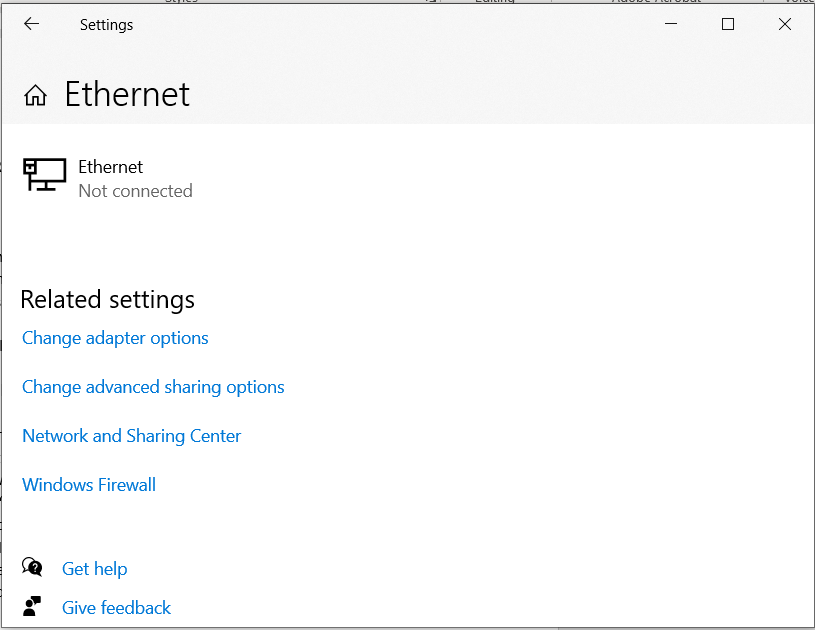
Your computer is now disconnected from your amplifier. Go to your computer’s network and internet settings for ethernet connection.
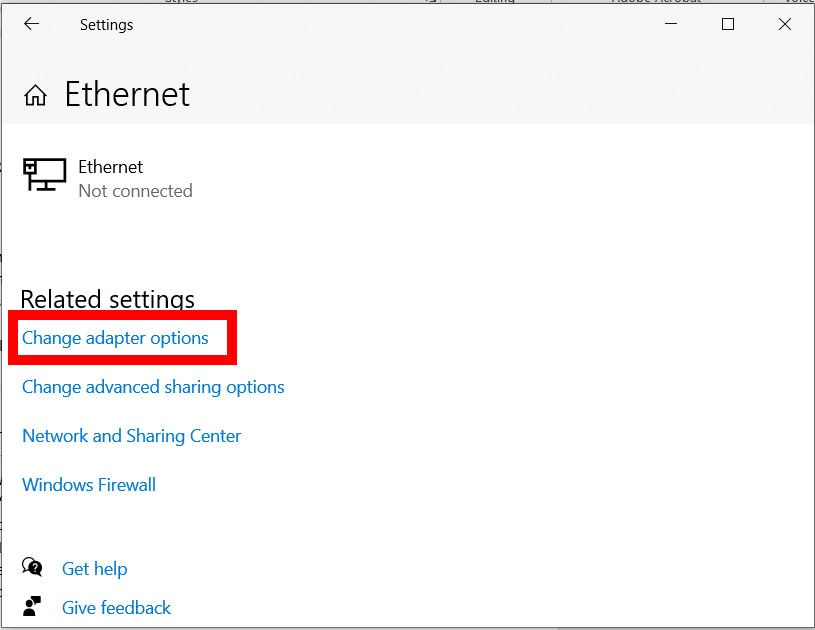
Click on “Change Adapter Options” (Windows)
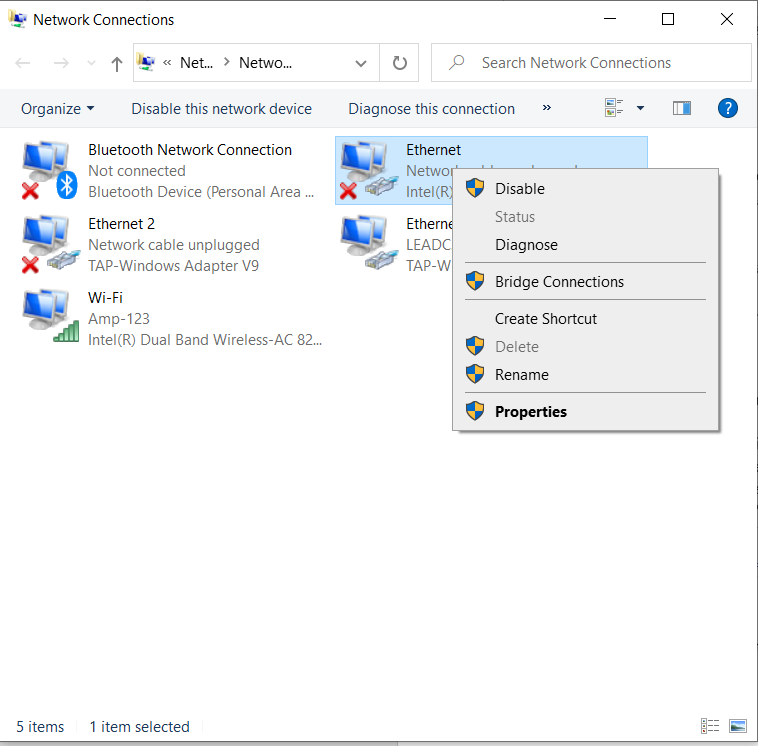
Right-click on “Ethernet” and click on “Properties” (Windows)
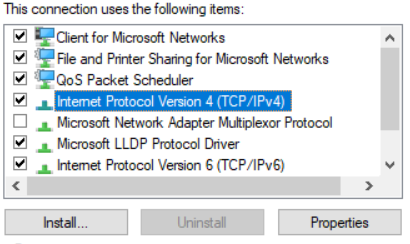
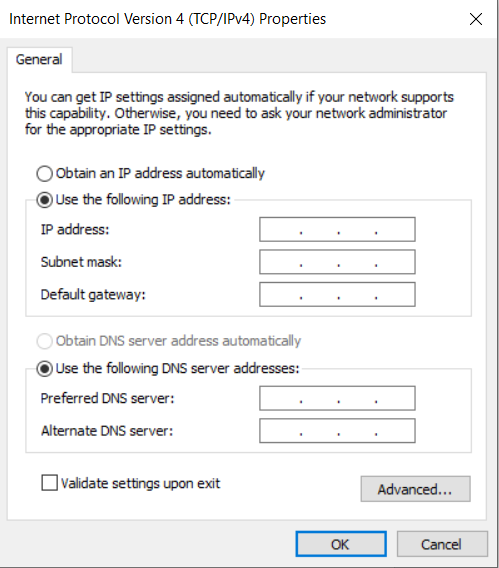
Now find and highlight “Internet Protocol Version 4 (TCP/IPv4). Click on “Properties”.
Select the option “Use The Following IP Address”.
Now set your computer to an IP Address within the same subnet range as your amplifier’s IP address but not the same exact IP Address. Click “OK”
Go back to your browser and type in the new IP Address of your amplifier and hit enter.
Now you are fully connected via static IP with both your amplifier and computer.
If you have any questions or feedback about how to set a static IP address for your amplifiers, feel free to leave them in the comments below or reach out to us on our social media channels.
Want more LEA content delivered directly to your inbox? Enter your email address below to be subscribed to our monthly newsletter and keep up with all of the latest news and content from LEA Professional.
This website uses cookies to improve your experience. We'll assume you're ok with this, but you can opt-out if you wish.AcceptRejectRead More
Privacy & Cookies Policy
Privacy Overview
This website uses cookies to improve your experience while you navigate through the website. Out of these, the cookies that are categorized as necessary are stored on your browser as they are essential for the working of basic functionalities of the website. We also use third-party cookies that help us analyze and understand how you use this website. These cookies will be stored in your browser only with your consent. You also have the option to opt-out of these cookies. But opting out of some of these cookies may affect your browsing experience.
Necessary cookies are absolutely essential for the website to function properly. This category only includes cookies that ensures basic functionalities and security features of the website. These cookies do not store any personal information.
Any cookies that may not be particularly necessary for the website to function and is used specifically to collect user personal data via analytics, ads, other embedded contents are termed as non-necessary cookies. It is mandatory to procure user consent prior to running these cookies on your website.